Publish the device
A port-forward rule
- Works from anywhere, with no client software
- The device is reachable by the whole internet
- Its firmware becomes an internet-facing dependency
- Needs a router you administer and a reachable address
Reaching one device inside a house from outside it usually means choosing between two uncomfortable options: forward a port and put the device on the internet, or run a VPN into the network and reach everything on it.
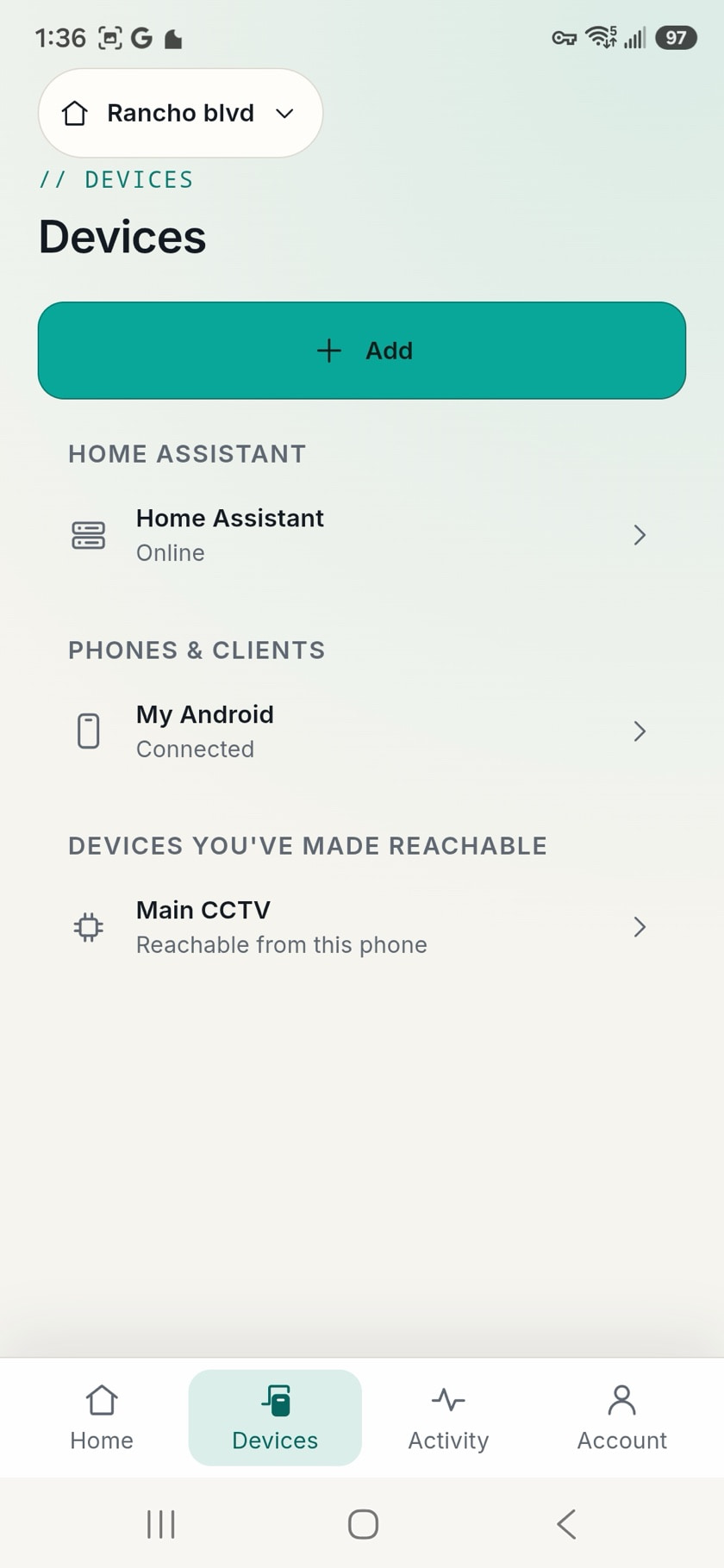
HomeTunnel’s custom routes are the narrow middle. A route names one IPv4 address and one TCP port — the recorder, the NAS admin page, the printer — and that is the whole of what becomes reachable.
A custom route grants access to a single IPv4 host, on a /32, on a single TCP port. It does not name — or create — an unrestricted subnet route, so there is no wider access to be granted by accident.
Each published device gets its own access policy and its own route entry. Nothing is shared between them, which is why removing one route takes exactly one service away.
100.87.114.83192.168.68.161/32TCP:8123192.168.68.42/32TCP:554192.168.68.23/32TCP:5000192.168.68.77/32TCP:631Four services, four chains. Each carries its own policy and its own route, so removing one route removes exactly one service — and nothing beside it.
One host · one port · no subnetThe pattern is the same each time: a device with a local TCP interface you need occasionally and do not want on the internet.
The recorder's own web or streaming interface on its TCP port, reached over the tunnel instead of through a forwarded port. Cameras are one of the devices people most regret publishing to the internet.
The NAS admin interface on its own host and port — enough to check a volume or a backup job, without the NAS being discoverable from outside the home.
A printer's management page, or a box like an OctoPrint host, as its own route on its own port.
A solar inverter, an irrigation controller, a hub with a local web interface — anything in the home with a TCP service you occasionally need and never want published.
A dashboard or status page running on a machine in the house, available to the devices enrolled in that home and to nothing else.
Every home already has the Home Assistant route: its host on TCP 8123. The custom routes are the three you add beside it.
The narrowness is the feature. It is also the constraint, so it is worth being plain about where it stops.
Yes, through custom routes. Each custom route grants access to one IPv4 host on one TCP port inside a home, and a home can have up to three of them in addition to its Home Assistant route.
Access goes to the client devices enrolled in that home. Routes belong to the home rather than to an individual device, so every client enrolled there reaches the same set.
Yes. Add a custom route naming the recorder's IPv4 address and the TCP port its interface listens on. Nothing else on that network becomes reachable, because a route names a single host rather than a subnet.
There is no port-forward rule involved, so the recorder is not reachable from the internet at all.
Yes, the same way: the NAS IPv4 address and the TCP port of the service you want — commonly its administration interface.
Each route is independent, with its own access policy and its own route entry, so removing it later takes away exactly that one service.
Three custom routes per home, beside the Home Assistant route that every home gets. That limit is the same on both the Family and Manager plans.
Family covers up to 3 homes and Manager up to 5, so the number of custom routes scales with the number of homes rather than with the plan tier.
No. A route identifies one IPv4 address on a /32 and one TCP port. There is no subnet option and no general LAN access to grant.
That is the central difference from putting a conventional VPN into the house, where being connected usually means reaching everything on the network.
No. The Home Assistant add-on inside the home and your client devices both make outbound connections, and no inbound port-forward rule, dynamic DNS record, or public IP is required.
The device you publish is therefore not exposed to the internet — only to the clients enrolled in that home.
No. HomeTunnel does not provision cross-home routes or shared network paths, and each home's resources are scoped to that home and its authorized owner.
This also lets two homes use identical private IP ranges without their routes colliding.
A route names one IPv4 host and one TCP port, so it suits services reached over TCP — typically a web or administration interface on a known port.
If a device's service is not reachable on a single TCP port, a custom route is not the right way to get to it.
Set up remote access to multiple Home Assistant instances, with one account and isolated networks for each home.
Read the guide →The common ways to reach Home Assistant from outside the house, compared honestly.
Read the guide →WireGuard without broad LAN routing, and no peer configuration to maintain by hand.
Read the guide →Enroll a phone, connect over the tunnel, and switch which home it reaches.
Read the guide →Both plans start with a 14-day trial on monthly billing. Cancel anytime · no lock-in
Start your trialSecure sign-in and account creation powered by Microsoft Entra. Opens in a new tab.